> ## Documentation Index
> Fetch the complete documentation index at: https://evalgate.com/docs/llms.txt
> Use this file to discover all available pages before exploring further.
# Create a monitor
> Define what to sample and how to score it.
# Create a monitor
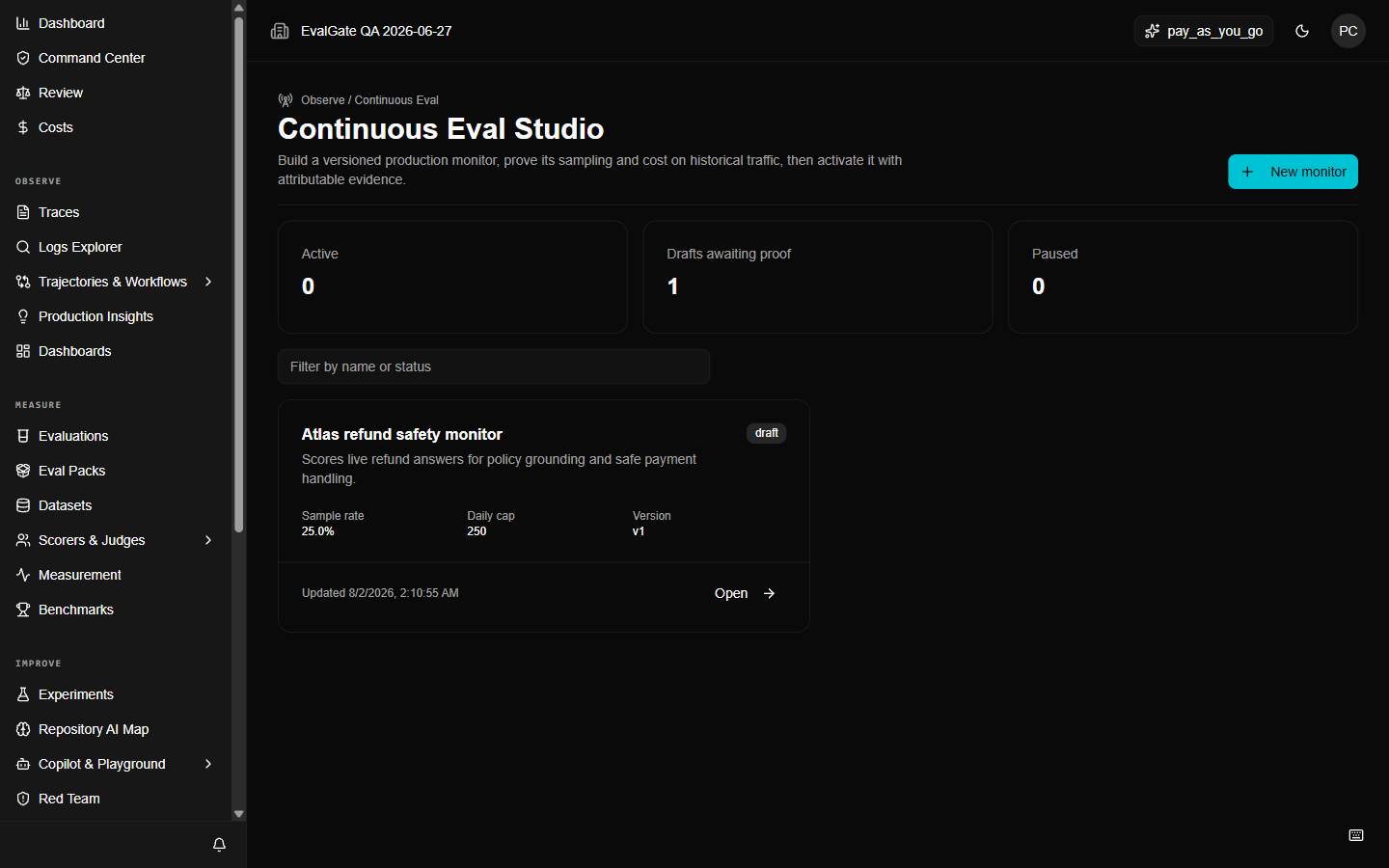
A Continuous Eval monitor watches live traffic, scores a sample of it, and
alerts you when quality slips. It lives at `/online-evals`.
## Step 1 — Start from a query
The best monitors start from a real failure query. In the
[Logs explorer](../traces/explore-logs), build the query that defines the
traffic you care about, then click **Create draft monitor**.
 ## Step 2 — Define the sample and scorer
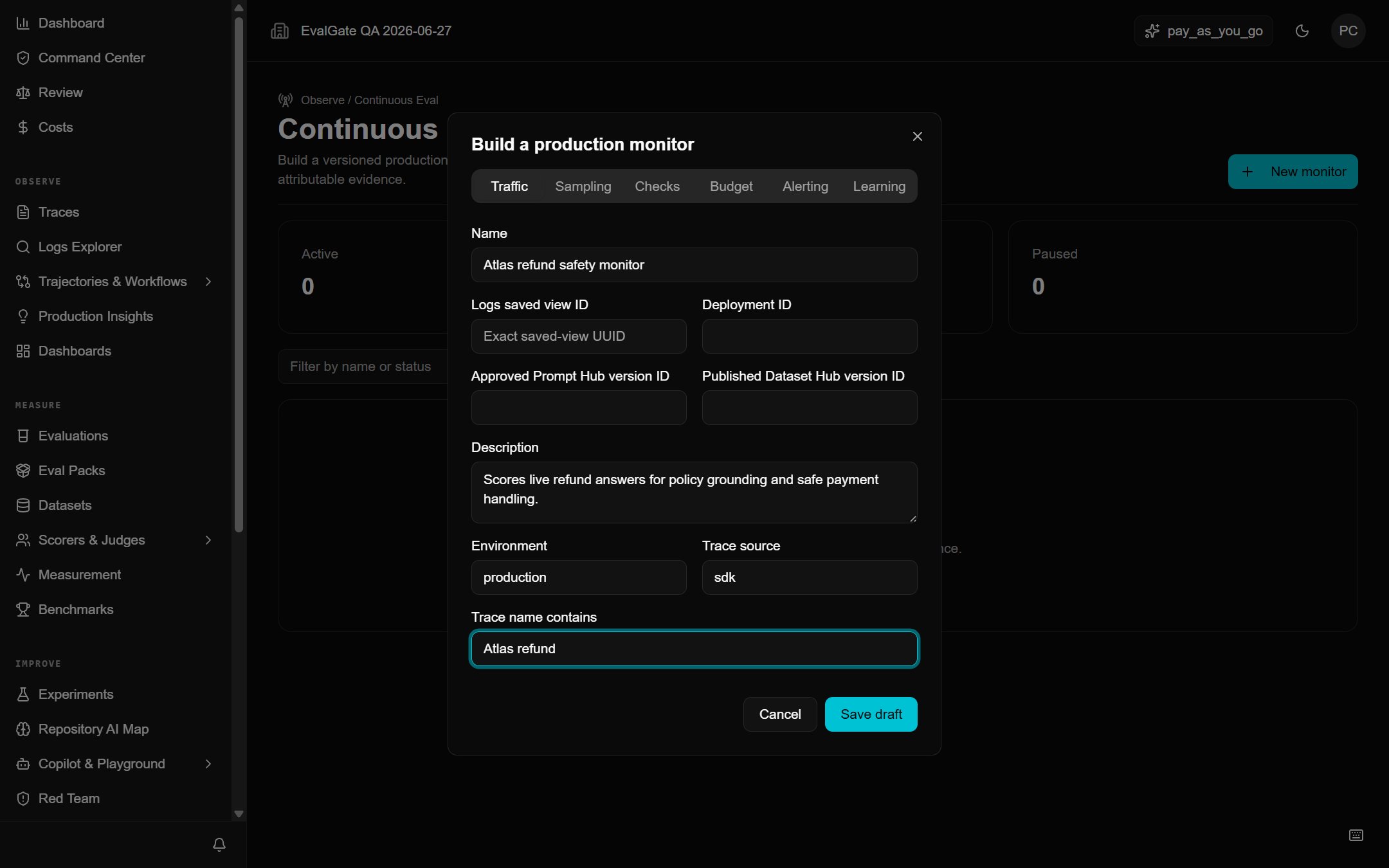
On the monitor draft page:
1. Set the **sample rate** or **filter** that selects which traces to score.
2. Pick the **scorer** (calibrated, ideally) that decides pass/fail.
3. Set the **alert threshold** — for example, alert if the failure rate over the
last 100 samples exceeds 5%.
## Step 2 — Define the sample and scorer
On the monitor draft page:
1. Set the **sample rate** or **filter** that selects which traces to score.
2. Pick the **scorer** (calibrated, ideally) that decides pass/fail.
3. Set the **alert threshold** — for example, alert if the failure rate over the
last 100 samples exceeds 5%.
 ## Step 3 — Simulate on history
Before the monitor touches live traffic, **simulate** it against historical
traces. This proves the scorer and threshold behave the way you expect on real
data.
A monitor that has only been simulated is **not** active. It will not alert
anyone until you explicitly activate it.
## Step 4 — Save the version
Save the monitor version. Versions are immutable; changes create a new version
that you simulate and activate again.
## Up next
[Simulate, then activate](./activate-monitor) the monitor.
## Step 3 — Simulate on history
Before the monitor touches live traffic, **simulate** it against historical
traces. This proves the scorer and threshold behave the way you expect on real
data.
A monitor that has only been simulated is **not** active. It will not alert
anyone until you explicitly activate it.
## Step 4 — Save the version
Save the monitor version. Versions are immutable; changes create a new version
that you simulate and activate again.
## Up next
[Simulate, then activate](./activate-monitor) the monitor.