> ## Documentation Index
> Fetch the complete documentation index at: https://evalgate.com/docs/llms.txt
> Use this file to discover all available pages before exploring further.
# Create an evaluation
> From blank page to a runnable eval in two minutes.
# Create an evaluation
An evaluation is a named set of test cases plus the scorers that decide pass or
fail. You will create one, add a couple of cases, and pick a scorer.
## Step 1 — Open evaluations
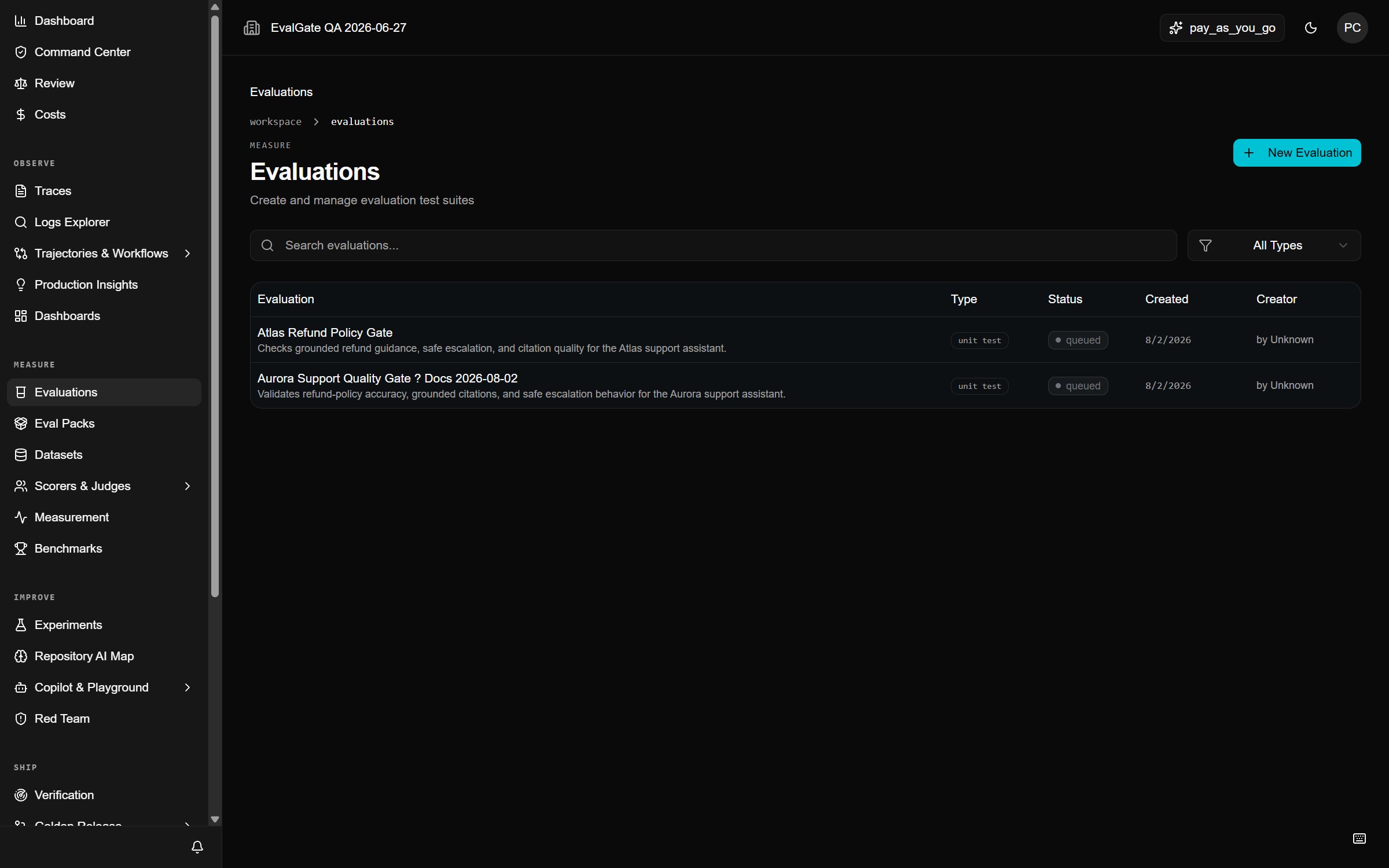
In the sidebar, click **Evaluations**, then **New evaluation**.
 ## Step 2 — Name it
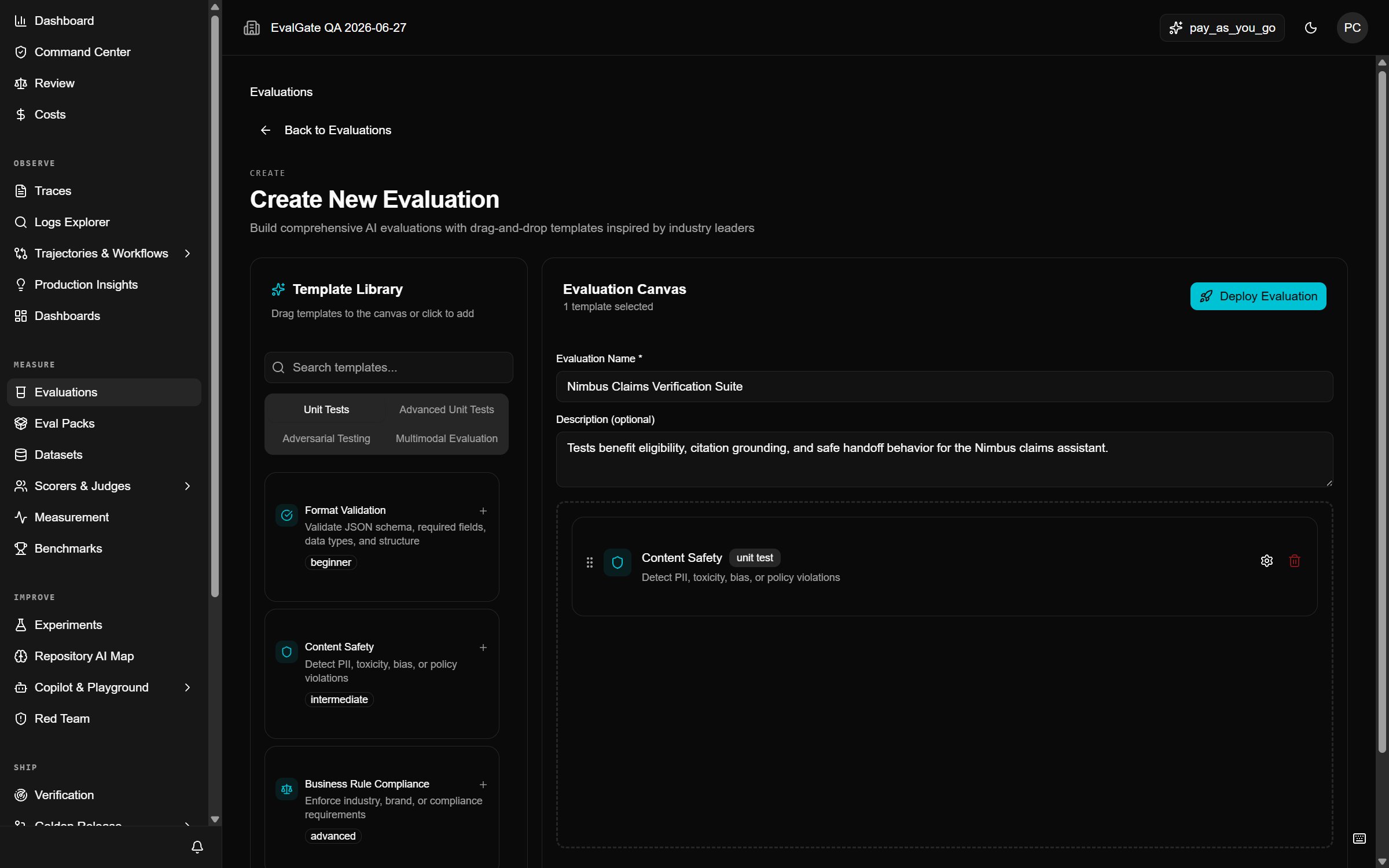
Give the evaluation a name that says what it checks, for example
`checkout-assistant-hallucination`. Add a short description. Click **Create**.
## Step 2 — Name it
Give the evaluation a name that says what it checks, for example
`checkout-assistant-hallucination`. Add a short description. Click **Create**.
 ## Step 3 — Pick a model and scorer
On the evaluation page:
1. Under **Model**, choose the model this eval runs against.
2. Under **Scorers**, add at least one. Start with a **deterministic** scorer
(for example, "output contains the order ID") before reaching for an LLM
judge.
Model-backed scorers need a [connected provider
key](../evalgate-101/connect-provider-key).
## Step 4 — Add cases
Go to the **Test cases** tab and add your first cases. See
[Add test cases](./add-test-cases).
## Up next
[Run the evaluation](./run-evaluation) and read the report.
## Step 3 — Pick a model and scorer
On the evaluation page:
1. Under **Model**, choose the model this eval runs against.
2. Under **Scorers**, add at least one. Start with a **deterministic** scorer
(for example, "output contains the order ID") before reaching for an LLM
judge.
Model-backed scorers need a [connected provider
key](../evalgate-101/connect-provider-key).
## Step 4 — Add cases
Go to the **Test cases** tab and add your first cases. See
[Add test cases](./add-test-cases).
## Up next
[Run the evaluation](./run-evaluation) and read the report.