> ## Documentation Index
> Fetch the complete documentation index at: https://evalgate.com/docs/llms.txt
> Use this file to discover all available pages before exploring further.
# Manage API keys
> Create, rotate, and revoke programmatic access.
# Manage API keys
API keys let the SDK, CLI, and your own scripts talk to the EvalGate platform.
They are separate from model provider keys.
## Step 1 — Open API keys
In the sidebar, click **Settings**, then **API keys**.
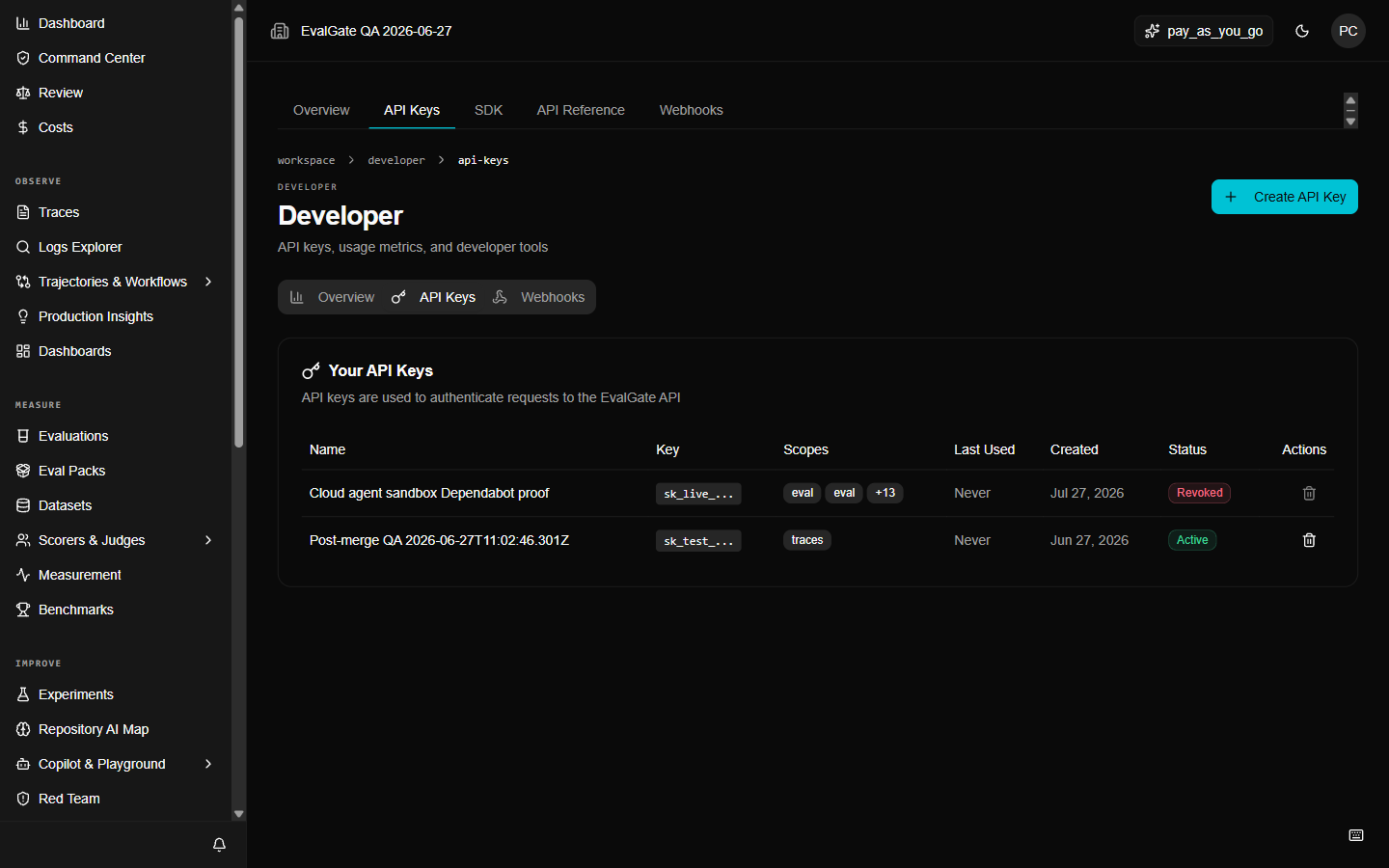 ## Step 2 — Create a key
1. Click **Create key**.
2. Name it for where it is used, for example `ci-evalgate-prod`.
3. Pick the scopes it needs. Give the fewest scopes that work.
4. Copy the key **now** — you will not see it again.
Treat an API key like a password. Store it in a secret manager or CI secret,
never in code. If a key leaks, revoke it immediately.
## Step 3 — Rotate a key
To rotate, create a new key, update your CI or scripts to use it, confirm
everything works, then revoke the old key. Never delete a key you are still
using — revoke it after the new one is live.
## Step 4 — Revoke a key
Open the key and click **Revoke**. Revocation is immediate. Any request using
that key fails from that moment on, and the revocation is recorded in the audit
trail.
## Up next
[Check feature status](./feature-status) before depending on a
surface in production.
## Step 2 — Create a key
1. Click **Create key**.
2. Name it for where it is used, for example `ci-evalgate-prod`.
3. Pick the scopes it needs. Give the fewest scopes that work.
4. Copy the key **now** — you will not see it again.
Treat an API key like a password. Store it in a secret manager or CI secret,
never in code. If a key leaks, revoke it immediately.
## Step 3 — Rotate a key
To rotate, create a new key, update your CI or scripts to use it, confirm
everything works, then revoke the old key. Never delete a key you are still
using — revoke it after the new one is live.
## Step 4 — Revoke a key
Open the key and click **Revoke**. Revocation is immediate. Any request using
that key fails from that moment on, and the revocation is recorded in the audit
trail.
## Up next
[Check feature status](./feature-status) before depending on a
surface in production.