> ## Documentation Index
> Fetch the complete documentation index at: https://evalgate.com/docs/llms.txt
> Use this file to discover all available pages before exploring further.
# Export traces
> Download a bounded, redacted CSV or JSONL file.
# Export traces
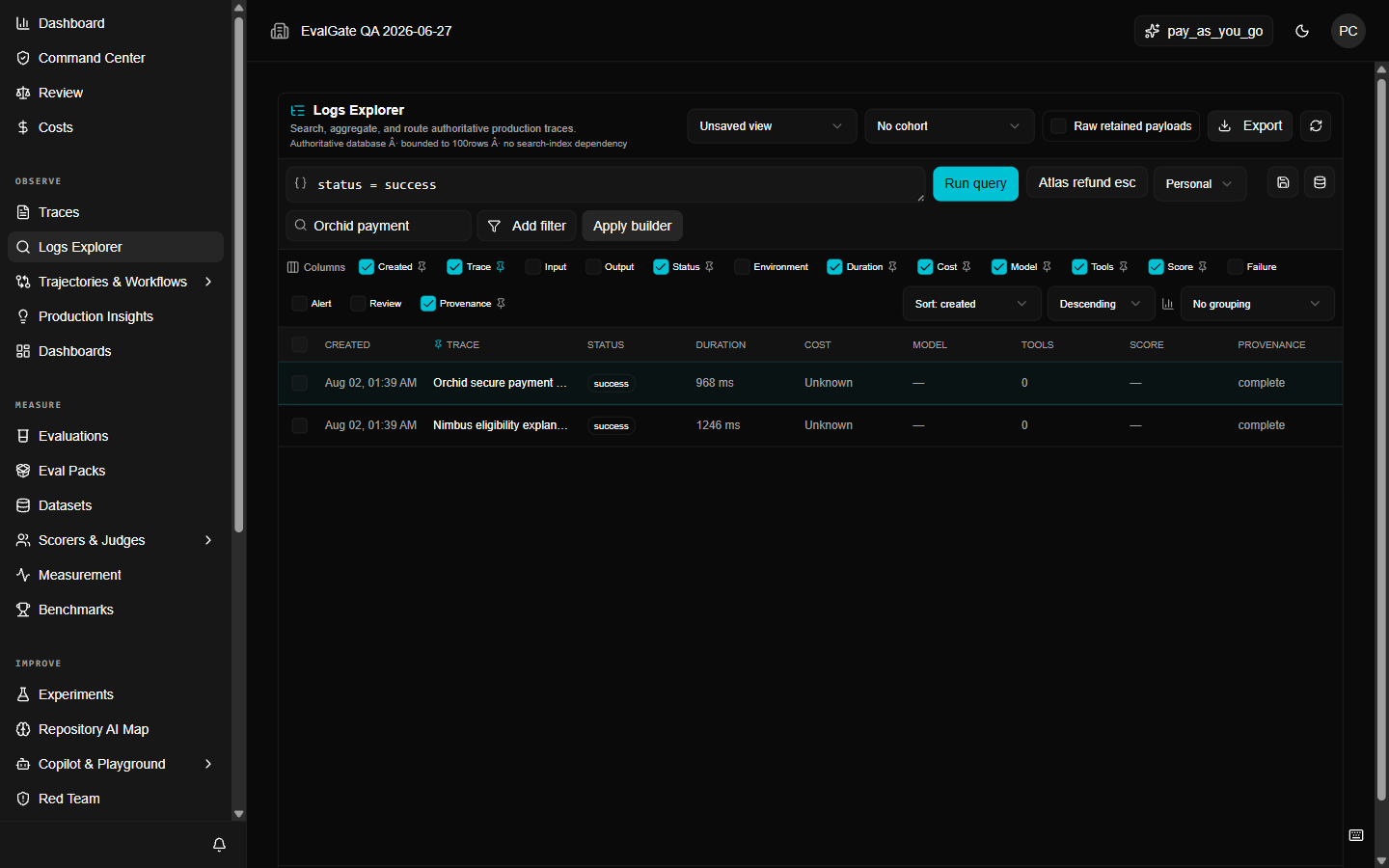
Export is for when you need data outside EvalGate. It is bounded and redacted by
default, and every export attempt is audited.
## Step 1 — Build a bounded query
Never export "everything." Build the smallest query that answers your question,
for example:
```text theme={null}
status = failed AND environment = production AND created >= 2026-07-01T00:00:00.000Z
```
## Step 2 — Choose the format
Click **Export** and pick **CSV** or **JSONL**. CSV is for spreadsheets; JSONL is
for re-importing into another tool.
 ## Limits
* Exports stop at **5,000 rows** or **5 MiB**, whichever comes first.
* Exports are **redacted** — secrets and raw payloads are not included by
default.
* **Raw payload export** is a separate, privileged operation that requires the
organization-admin scope. Every raw export is recorded with an audit ID.
## Step 3 — Download
When the export is ready, download the file. If it failed, the audit ID in the
error tells you why; reopen the canonical query and narrow it further.
Treat every exported file as sensitive. Store it where your security policy
allows, and delete it when you are done.
## Up next
Use the exported cases to [add test cases](../evaluations/add-test-cases) to
an evaluation.
## Limits
* Exports stop at **5,000 rows** or **5 MiB**, whichever comes first.
* Exports are **redacted** — secrets and raw payloads are not included by
default.
* **Raw payload export** is a separate, privileged operation that requires the
organization-admin scope. Every raw export is recorded with an audit ID.
## Step 3 — Download
When the export is ready, download the file. If it failed, the audit ID in the
error tells you why; reopen the canonical query and narrow it further.
Treat every exported file as sensitive. Store it where your security policy
allows, and delete it when you are done.
## Up next
Use the exported cases to [add test cases](../evaluations/add-test-cases) to
an evaluation.