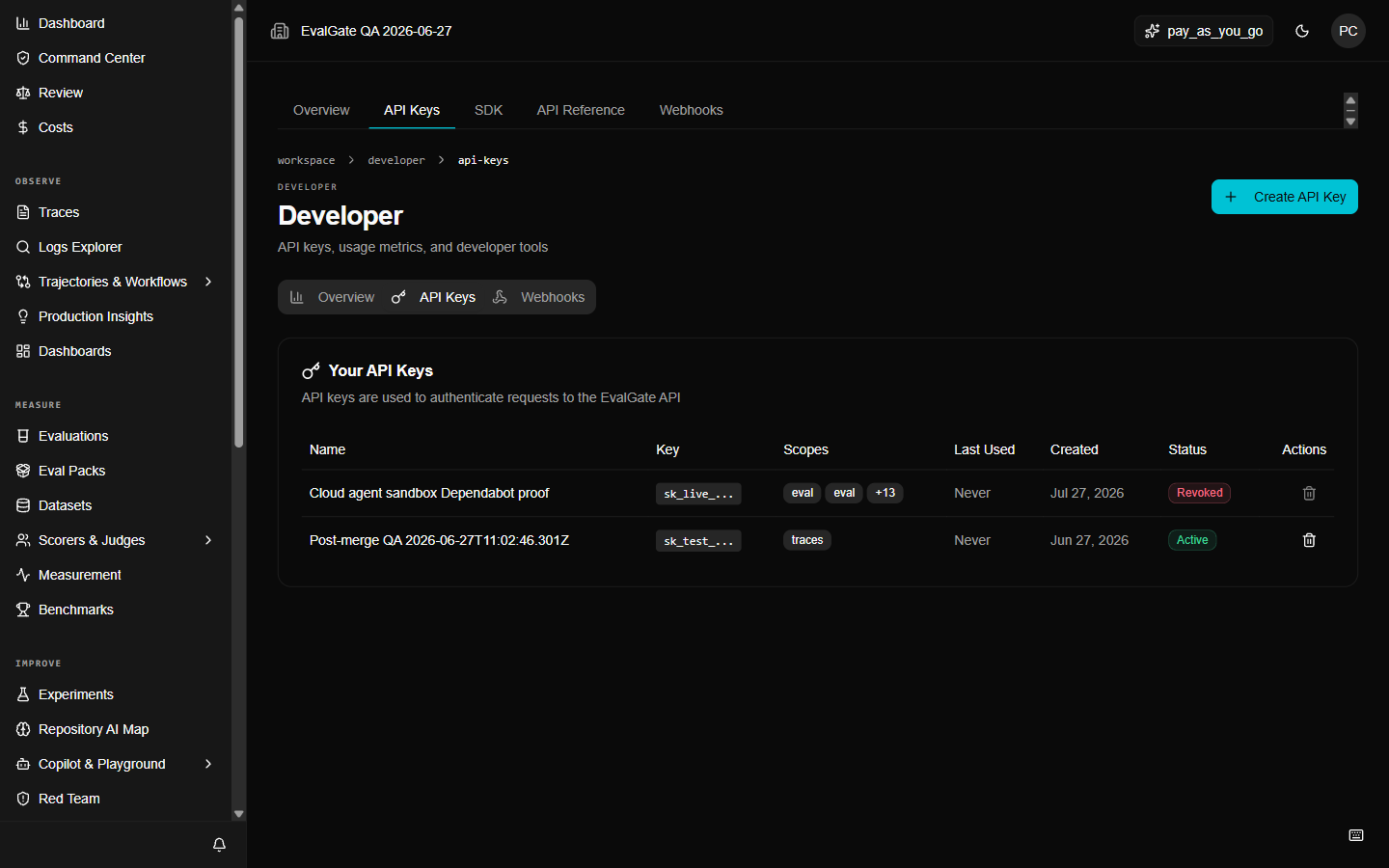
Manage API keys

API keys let the SDK, CLI, and your own scripts talk to the EvalGate platform. They are separate from model provider keys.

Step 1 — Open API keys

In the sidebar, click Settings, then API keys. A screenshot of the API keys list with the Create key button.

Step 2 — Create a key

  1. Click Create key.
  2. Name it for where it is used, for example ci-evalgate-prod.
  3. Pick the scopes it needs. Give the fewest scopes that work.
  4. Copy the key now — you will not see it again.
Treat an API key like a password. Store it in a secret manager or CI secret, never in code. If a key leaks, revoke it immediately.

Step 3 — Rotate a key

To rotate, create a new key, update your CI or scripts to use it, confirm everything works, then revoke the old key. Never delete a key you are still using — revoke it after the new one is live.

Step 4 — Revoke a key

Open the key and click Revoke. Revocation is immediate. Any request using that key fails from that moment on, and the revocation is recorded in the audit trail.

Up next

Check feature status before depending on a surface in production.