Simulate, then activate a monitor
A monitor goes through three states: draft → simulated → active. You never skip straight to active.Step 1 — Simulate
On the monitor page, click Simulate, set the window, and click Run simulation. EvalGate runs the scorer against historical traces that match the filter and shows you the would-be alert rate, score distribution, and any samples that would have fired.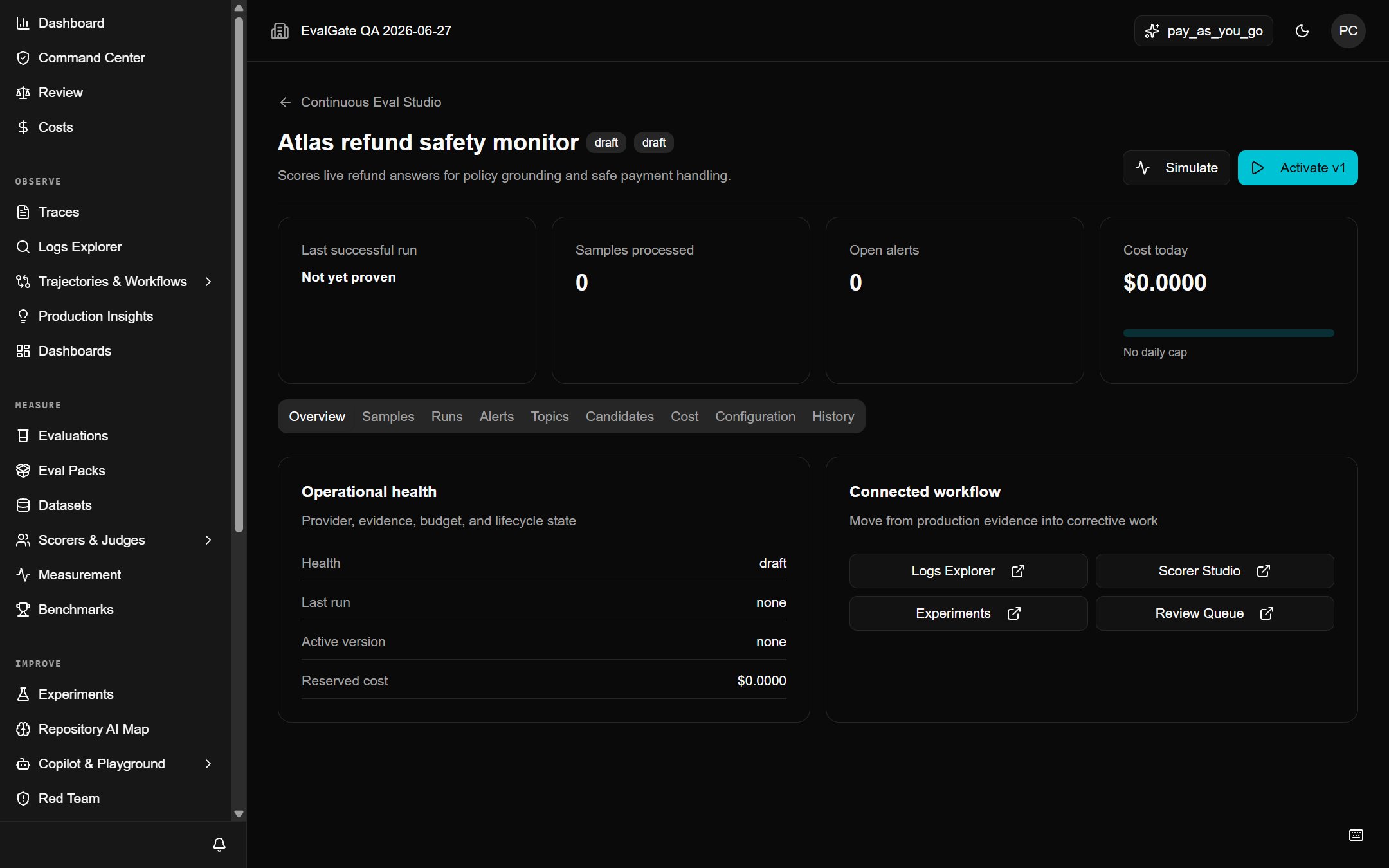
Step 2 — Adjust if needed
If the simulation fires too often or never, adjust the threshold or scorer, save a new version, and simulate again. A monitor that never fires is as useless as one that always fires.Step 3 — Activate
When the simulation looks right, click Activate v1 (the draft’s version number) and confirm with Activate version. The monitor now samples live traffic, scores it, and can fire alerts.